Quite often, clients reply from different email addresses to the same ticket. This breaks the ticket flow, splitting the original thread into two different tickets. Also, when you get two or more tickets from the same client about the same problem, it will be easier to manage if you have the ability to combine those tickets into a single thread. Combining two email threads can be carried out using the ticket merging feature in SupportBee.
Merging tickets
Let us consider a scenario where Ticket A has to be merged with Ticket B. In this case, Ticket B is considered the parent and Ticket A, the child.
The merging can be done from the Ticket A's view screen. Here are the steps to merge:
- Click on the 'More' dropdown in the ticket screen
- Choose the option 'Merge with another ticket'
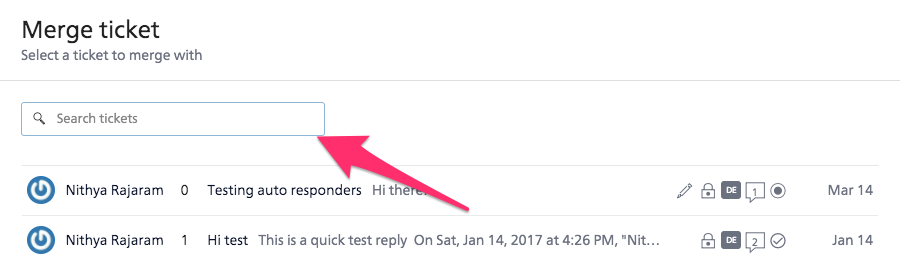
- Choose the ticket you want to merge with and click 'Next'
- Click 'Merge'
This will result in Ticket A (child) merging with Ticket B (parent).
In step 3, while choosing the ticket to merge with, you can can either choose from the list provided or by searching for it in the search box.
Reversing ticket merges
No. A merge cannot be reversed.
Merging tickets from different customers
Yes. The merging is seamless when you merge tickets from the same customer. When you merge tickets from different customers, the customer information from the ticket being merged is not retained.
Merging with archived tickets
Yes. However, we do not show archived tickets in the dropdown list. You have to search for those in the search field provided.
Why unrelated emails sometimes merge into the same ticket
SupportBee uses email headers (specifically the In-Reply-To and References headers) to group messages into threads. If an unrelated email arrives with headers that reference an existing ticket's message ID, SupportBee will attach it to that ticket.
Common causes:
- Customer replied to an old email instead of composing a new one - Some customers open an old email and hit "Reply" to start a new conversation. Their email client carries forward the original thread headers, so SupportBee treats it as part of the original ticket.
- Email client reusing message IDs - Certain email clients or forwarding setups can reuse or copy headers from previous messages, causing unrelated emails to thread together.
- Forwarding chains - When emails pass through multiple forwarding rules, some providers preserve the original headers, linking the forwarded message to an existing ticket.
To fix this, you can split the ticket to move the unrelated replies into a new ticket. If the messages are duplicates rather than unrelated, merge them instead using the steps above.
Why a customer reply creates a new ticket instead of threading
The opposite problem - a reply that should thread into an existing ticket instead creates a new one. This happens when the threading headers are missing or don't match.
Common causes:
- Customer started a fresh email - Instead of replying to your response, they composed a new email with the same subject line. Without the
In-Reply-Toheader, SupportBee cannot match it to the original ticket. - Subject line was modified - Some email clients strip or alter headers when the subject is changed significantly.
- Email forwarding stripped headers - Certain forwarding configurations remove the
Referencesheader, breaking the thread chain.
To resolve this, merge the new ticket into the original using the steps above. Going forward, the thread will continue normally as long as the customer replies to the merged ticket's messages.
Troubleshooting broken threads
If threading issues are recurring for a specific customer or domain:
- Check the original email headers on the affected ticket - go to Viewing Original Email Headers and look for
In-Reply-ToandReferencesfields - If headers are missing or incorrect, the issue is on the sender's email client or forwarding setup - not something SupportBee can control
- For customers who frequently start new emails instead of replying, consider adding a note in the ticket to merge future messages manually
- If a forwarding rule is stripping headers, check the forwarding configuration in the email provider - most providers have an option to preserve original headers