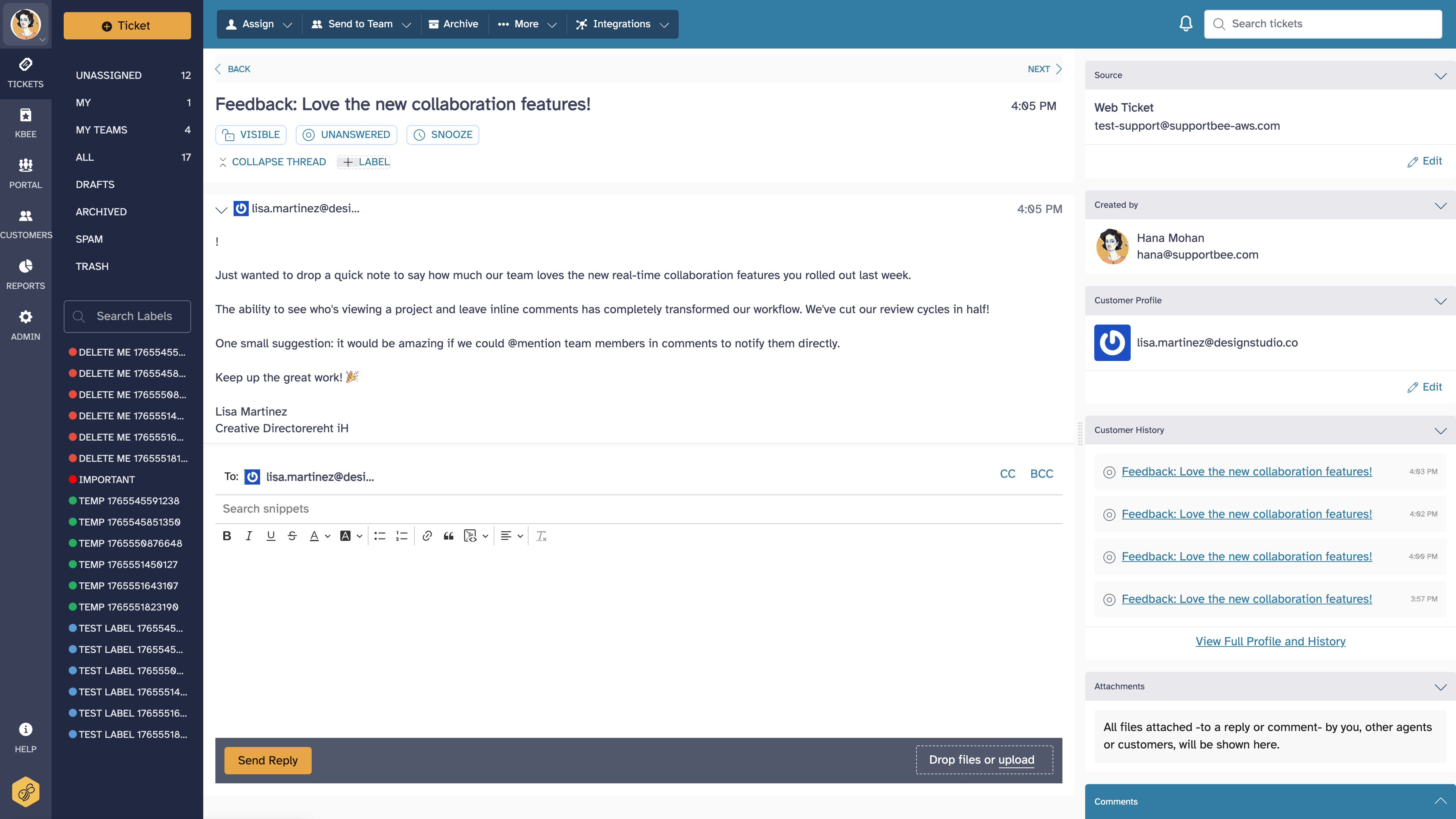
When you view a ticket, scroll down to see a rich editor for replying to tickets. You can also press 'r' when viewing a ticket to focus the reply editor and start typing.
Preventing duplicate replies
There are two indications that a ticket is being currently handled by another agent:
- When you access a ticket which is already opened by another user, you will see a red alert in the bottom right corner of the ticket page that somebody else is also viewing it. At this point you can either comment on the ticket, contact your coworker to ensure they are handling it, or simply move on to the next ticket.

- If a reply is currently in progress on a ticket, a symbol will appear beside the ticket information in the list, resembling a pencil. This is an indication that there is a draft reply in progress.

Undoing a sent reply
After you click Send Reply, SupportBee keeps the reply available for recall for 10 seconds. During that window, the reply appears in the ticket with an Undo send button.

To recall a reply right after sending:
- Click Undo send within 10 seconds
- SupportBee restores the reply as a draft on the ticket
- Review or edit the message, then send it again when ready
Once the 10-second window expires, the reply is delivered and can no longer be recalled.
Finding tickets after replying
Once you reply to a ticket, it will automatically be marked as answered and removed from the unanswered list for you to focus your attention on the rest. In SupportBee, there is no need for you to explicitly close a ticket. As you reply, the system will automatically mark the ticket answered and move it to the 'Answered' section as appropriate. If you need to access a ticket in-spite of having replied to it, scroll down to the section beneath the 'Unanswered' list. You can also find it in the 'All Tickets' section (in the left navigation menu). For more information, see Ticket States.
Accessing answered tickets
The list of answered tickets will normally appear in the section beneath the unanswered tickets list. However, you can access all the tickets that have ever come into the system from the 'All Tickets' section. The answered/archived tickets have a blue background differentiating them from unanswered tickets. Note that this section will include tickets that are assigned to specific groups and agents and may be in progress.
Handling tickets that don't need replies
In cases when a ticket does not need a reply for some reason, you can remove it from your queue by either marking it as spam or trash (when appropriate) or archiving it. For more information see Archive a Ticket.
Choosing which email address to reply from
If your account has multiple email addresses connected, the reply editor shows a "From" dropdown. SupportBee defaults to the address the ticket was originally received on - so a ticket that came in to [email protected] will reply from that same address.
To reply from a different address:
- Click the "From" field in the reply editor
- Select the address you want to send from
- Compose and send your reply as usual
This is useful when you handle tickets across departments or brands. The address you select is remembered for that ticket thread, so follow-up replies will default to the same choice.
For managing which addresses are available, see Managing Email Addresses.
Quoted text in replies
By default, quoted text is not included in replies. To include the original customer message as quoted text below your reply, enable the setting in Admin > Company > Include history in replies. This helps customers follow the conversation thread in their email client.
When the setting is enabled:
- Quoted text appears collapsed in the editor - click to expand it
- To remove quoted text before sending, expand it and delete the content
- If the ticket has multiple messages, the most recent customer message is quoted
Quoted text is included in the email the customer receives but does not affect how the ticket appears in SupportBee's interface.
Note that on long ticket threads, enabling this setting can slow down the reply editor on older computers or when browser extensions are active. If your customers need to follow conversation history, consider setting up a Customer Portal instead. The portal gives customers a dedicated page to view all their tickets and replies without relying on quoted text in emails.
Formatting your replies
The reply editor supports rich text formatting via the toolbar or keyboard shortcuts:
- Bold - Ctrl/Cmd+B
- Italic - Ctrl/Cmd+I
- Bulleted and numbered lists - toolbar buttons
- Links - highlight text and press Ctrl/Cmd+K, or use the toolbar
- Inline images - drag and drop, or use the image button in the toolbar
- Code blocks - for technical content, use the code formatting option in the toolbar
To paste text without carrying over formatting from another source, use Ctrl/Cmd+Shift+V for plain text paste.
Tips for faster replies
Save time on common responses by using snippets. For inspiration, browse our canned response templates covering greetings, complaint handling, and more. You can also learn the fundamentals of writing effective support emails to make every reply count.