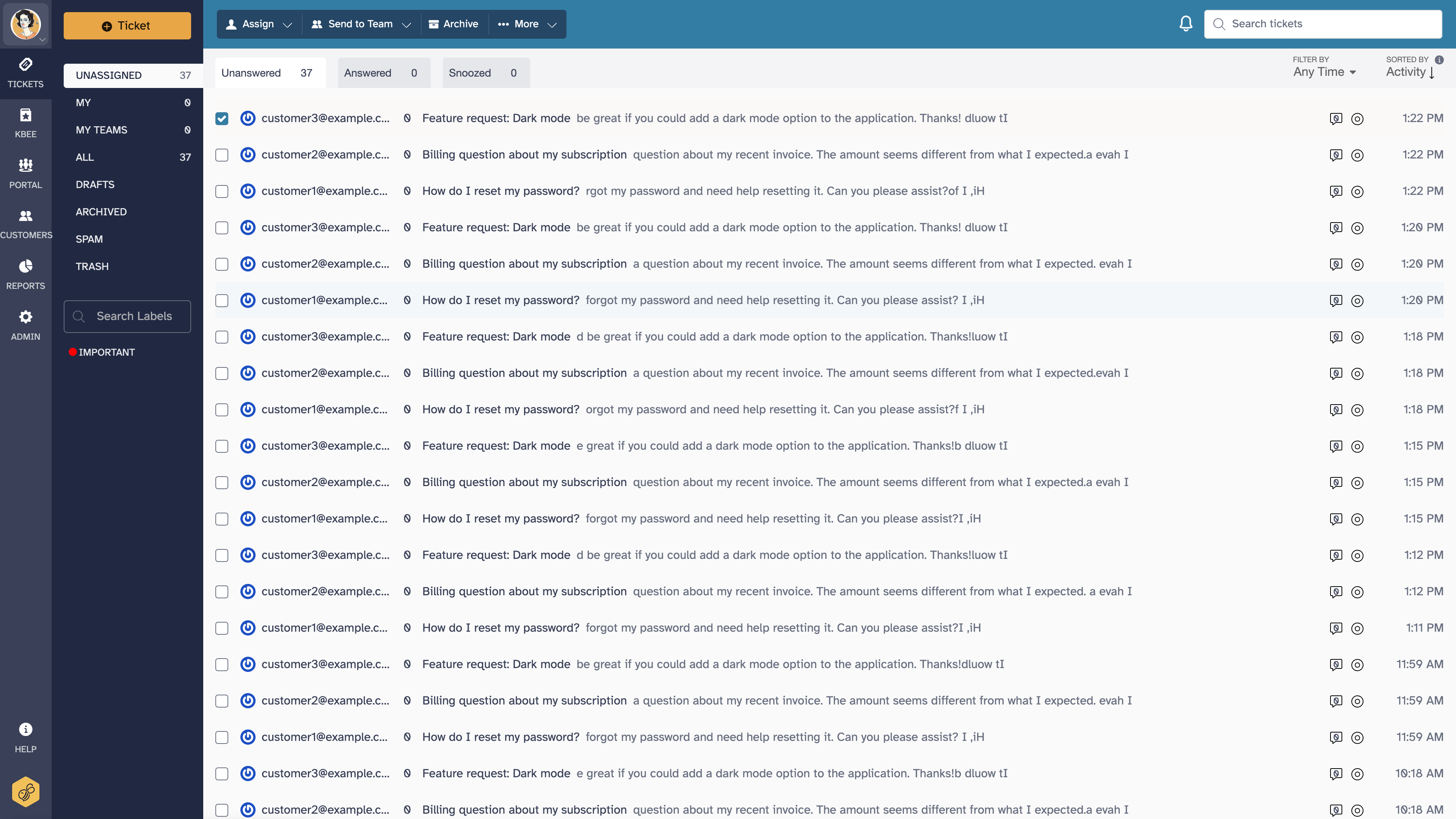
You can archive a ticket by selecting it in the list and clicking Archive or by opening it and clicking Archive. You can also use the keyboard-shortcut
Accessing archived tickets
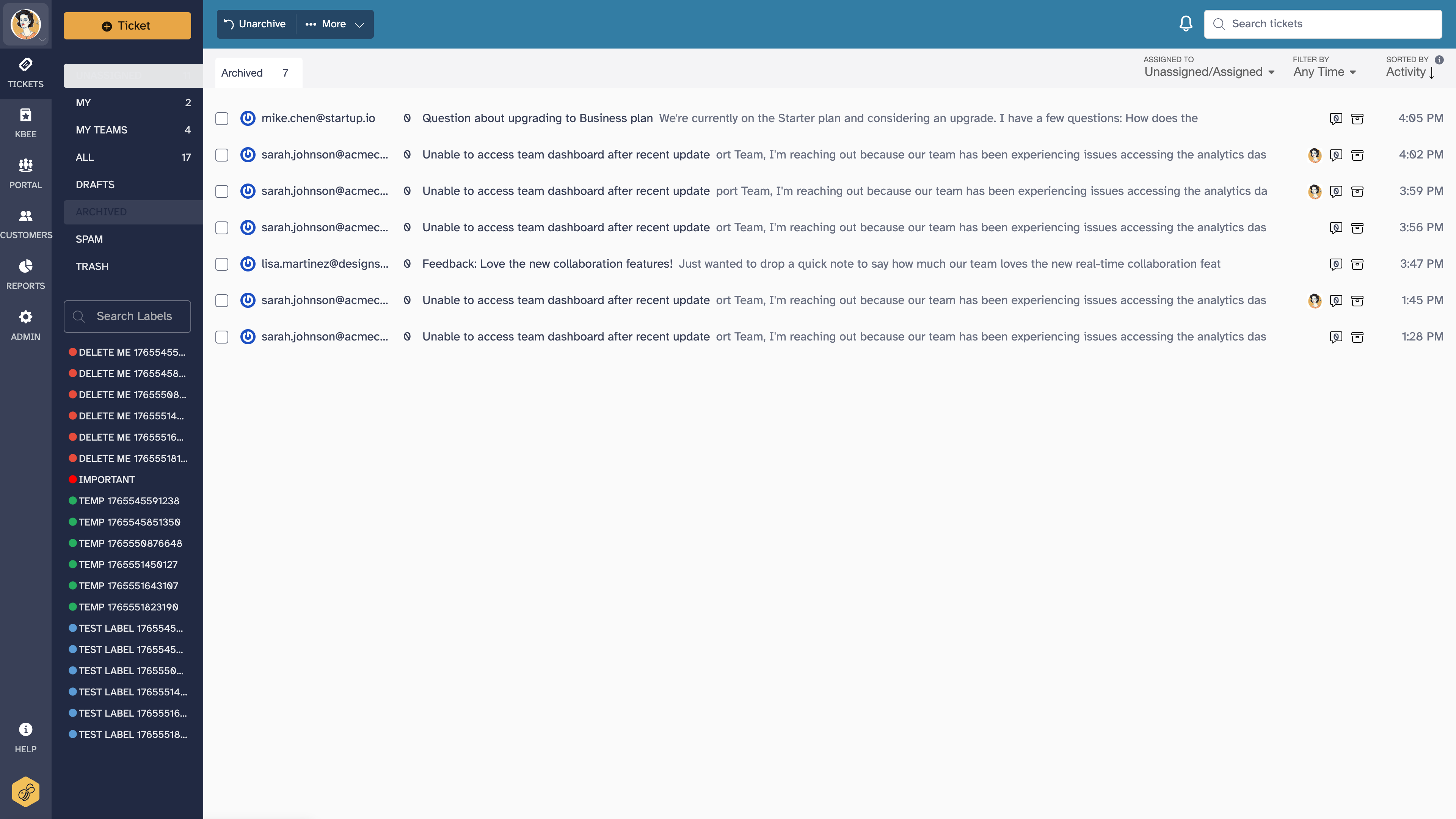
You can click on the 'Archived' section in the left navigation menu to access all archived tickets. Archived tickets also show up in search listings and in the 'All Tickets' section.
Customer replies to archived tickets
It is automatically unarchived, marked as Unanswered and showed up in the Unassigned listing, or in the specific listing for an agent/team (depending on whether it is unassigned or assigned).
Please note that manually unarchiving a ticket will also mark it as unanswered, even if the last reply was by an agent. For example, if an agent responds to a ticket, then archives it in error, unarchiving the ticket will automatically mark it as unanswered, even though the agent replied.
Notifying customers when tickets are archived
You can set up an auto-notification to be sent out when a ticket is archived. This can be useful when you want to notify a customer that a ticket is considered resolved, and to give the customer a sense of resolution for every ticket.
To set up a notification on ticket archive, select 'Admin' from your ticket interface:
- Select 'Email' from the left-hand menu
- Select the email address you want to modify
- Select 'Email After Archive' from the list of available options
- Enter the desired text for the notification. You can use variables like {{FIRST_NAME}} to personalize the notification.
- Check the box for 'Send an email to the customer when a ticket is archived'
- Click 'Update Email after Archive', and you're all done!
Reopening archived tickets
To reopen an archived ticket manually:
- Navigate to the archived ticket (via the Archived section, All Tickets, or search)
- Click Unarchive in the ticket view
The ticket moves back to the Unanswered list and appears in Unassigned (or the assigned agent/team's list if it was previously assigned). Note that unarchiving always marks the ticket as unanswered, regardless of who sent the last message.
If a customer replies to an archived ticket, it is automatically unarchived without any manual action - see "Customer replies to archived tickets" above.
Bulk archiving tickets
You can archive multiple tickets at once from the ticket list:
- Select tickets using the checkboxes in the list view
- Click the Archive button in the bulk action bar that appears
All selected tickets will be archived. If you have the "Email After Archive" notification enabled, each customer will receive the notification individually.
What happens when a customer replies after the archive notification
If you use the "Email After Archive" notification, customers may reply to that notification email. When they do:
- The archived ticket is automatically unarchived and marked as unanswered
- The customer's reply appears as a new message on the original ticket
- The ticket returns to your active queue for follow-up
This is normal behavior - the archive notification is not a "closed" state. If you want to discourage further replies, adjust the notification text to set expectations (for example, "If you have a new question, please email us at...").
Troubleshooting archive issues
Ticket reappears after archiving - A customer replied to the ticket, which automatically unarchives it. Check the ticket for new messages. If unwanted emails keep reopening a ticket (such as auto-replies or out-of-office messages), consider marking it as spam or using a filter to handle those messages.
Cannot find the archive button - The archive button appears in the ticket view and in the bulk action bar when tickets are selected. If you do not see it, confirm you are viewing a ticket that is not already archived. You can also use the keyboard shortcut 'e' to archive the currently viewed ticket - see Keyboard Shortcuts.
Archived ticket not appearing in search - Archived tickets are included in search results and the All Tickets section. If a ticket is not appearing, try broadening your search terms or check that you are searching in the correct time range.