When handling support tickets, you will often find yourself answering the same or similar questions on a regular basis. To make this repetition easier, and save time when giving common instructions or troubleshooting sets, you can save answers as snippets which can be added to tickets with a single click. Snippets can also be used to save blocks of text that are often present in replies. For example, if you have a standard introduction and conclusion for all your replies, save them as a snippet for easy use next time.
Where do I add snippets?
Snippets can be added from the Admin options on your ticketing page. While logged in as an admin:
- Click on the 'Admin' link in the top left corner, then 'Snippets' from the left side
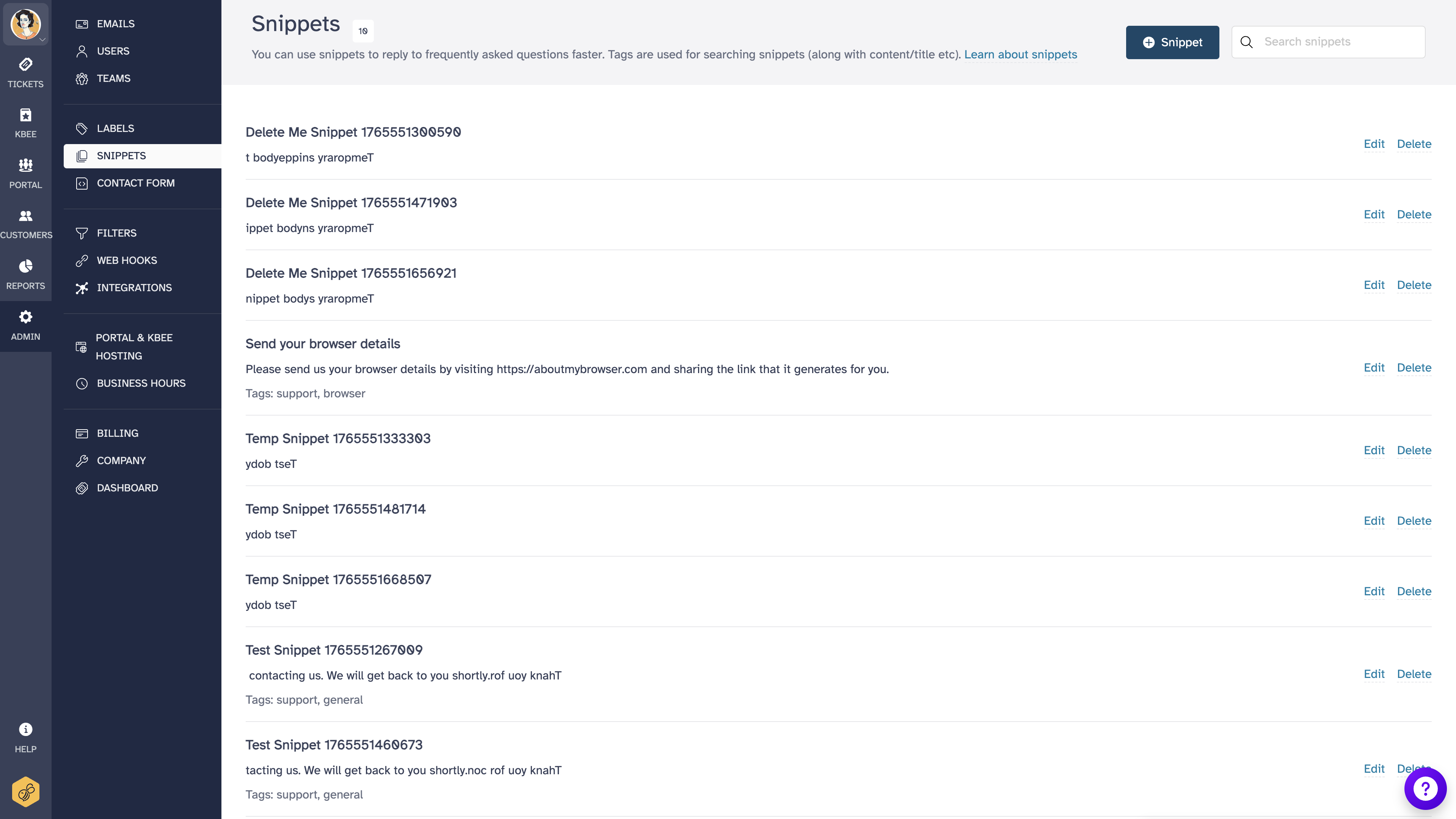
- Click on the 'Add a new snippet' button
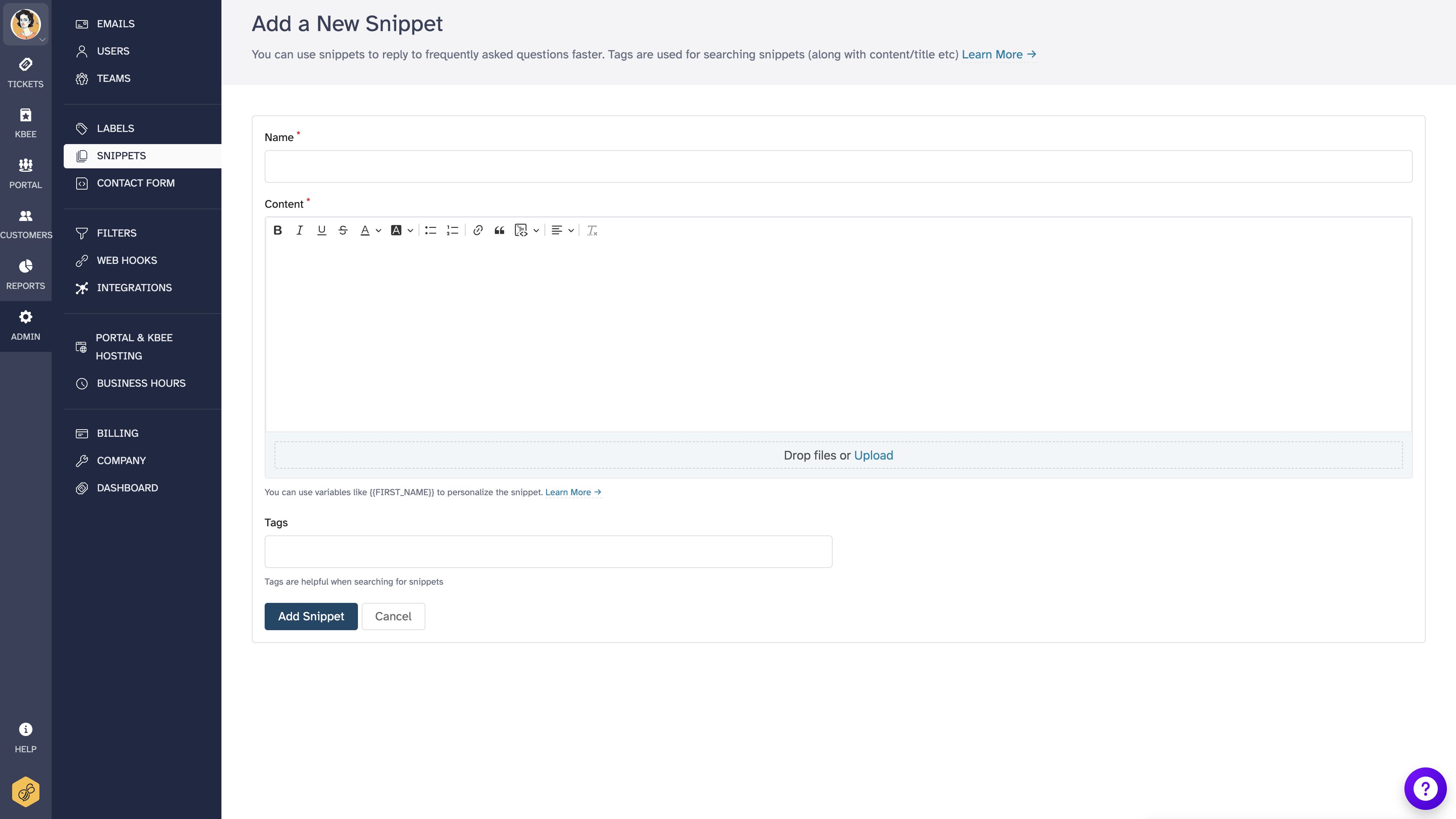
- Fill in the snippet name (used to identify the snippet in your list), body content, and tag details (used to search your list)
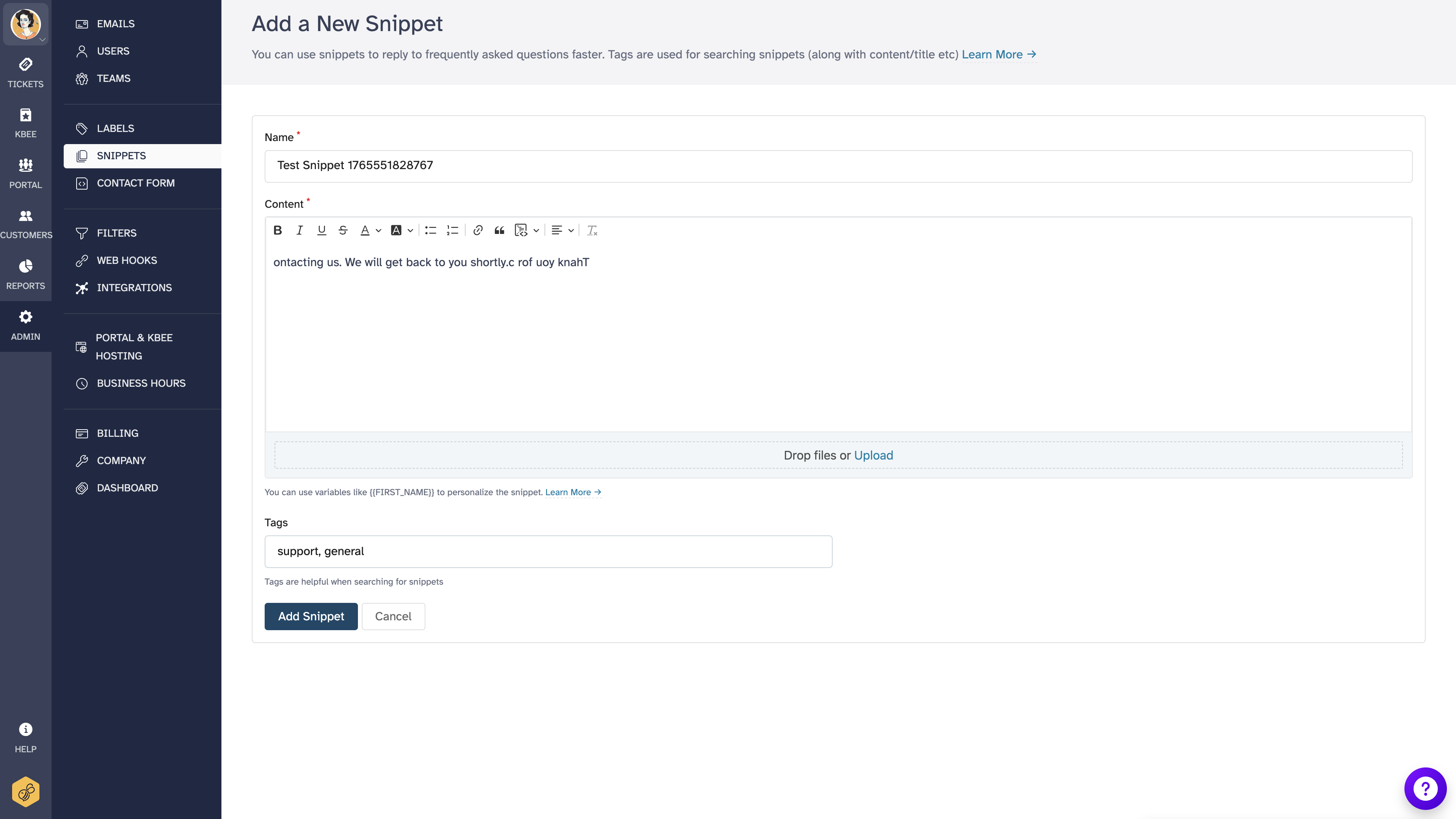
- Click on 'Add Snippet'
Can I add images to snippets?
Yes. All you need to do is drag and drop images into the snippets editor when editing or creating them.
Can my agents add Snippets when replying to tickets?
Only, only users with admin rights can add snippets.
How do I use snippets in my replies?
To add snippets to your replies,
- Click on the 'Search and insert snippets' option on the top right corner of the reply box, and select the appropriate snippet
Note that you can search for snippets by title, body content, or tag descriptions.
Is there a limit on the number of characters for a snippet?
Nope! Use as many as you need to make your snippet useful. It can be as big as a full length reply, or as small as a URL!
Can I use multiple snippets in the same reply?
Yes, use as many as you like! For example, if you have a standard introduction, conclusion, and answer, throw them all in there. Mix and match to your heart's content until you have the perfect response.
Can I add variables?
You can add first and last name variables:
- {{FIRST_NAME}}
- {{LAST_NAME}}
For example, when you create a snippet with the first name variable, the snippet will auto fill in the first name of the customer for you.
How do I edit a snippet?
To edit an existing snippet:
- Click on the 'Admin' link in the top left corner
- Select 'Snippets' from the left side menu
- Find the snippet you want to edit in the list
- Click 'Edit' next to the snippet
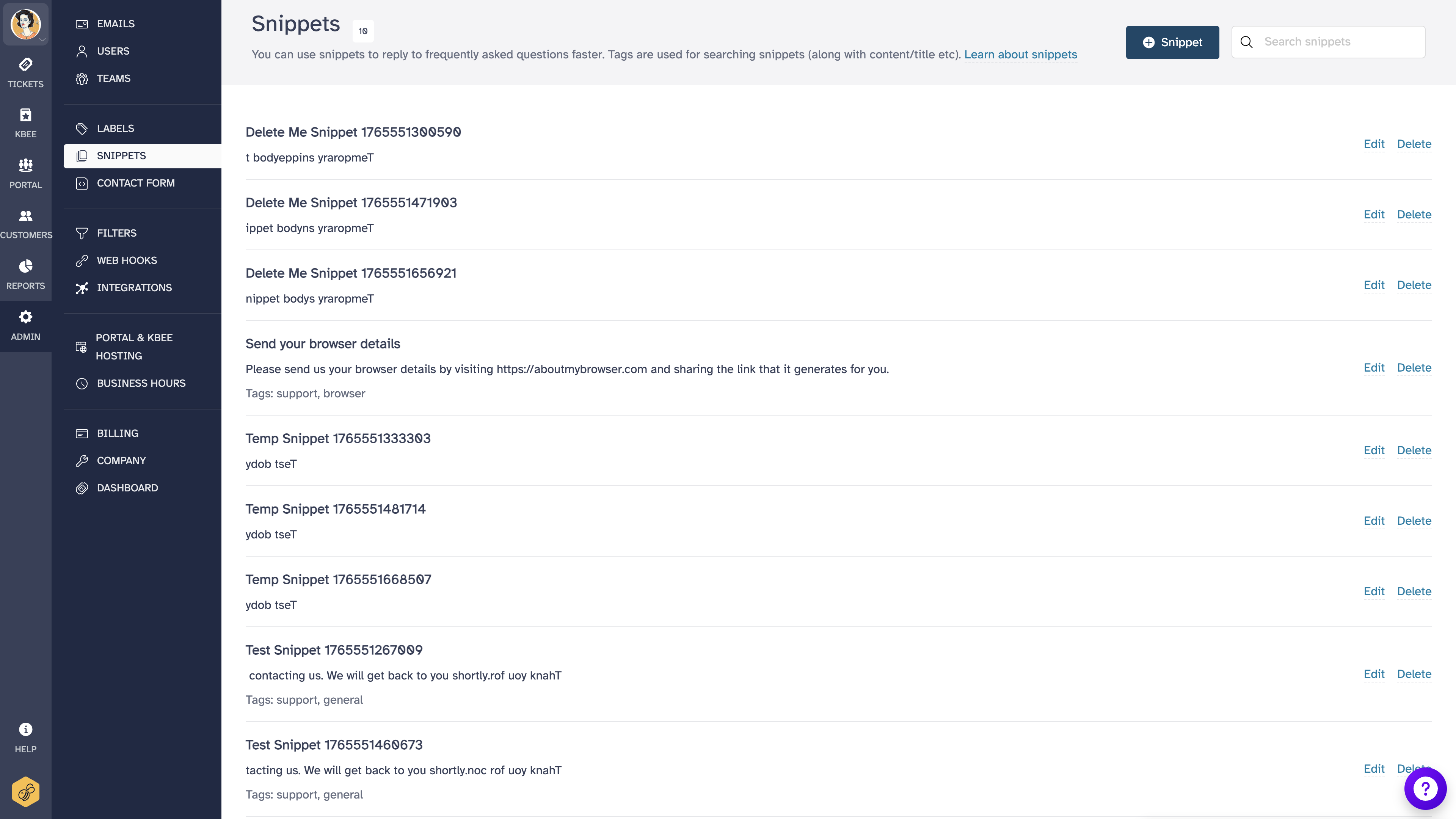
- Make your changes to the name, body, or tags
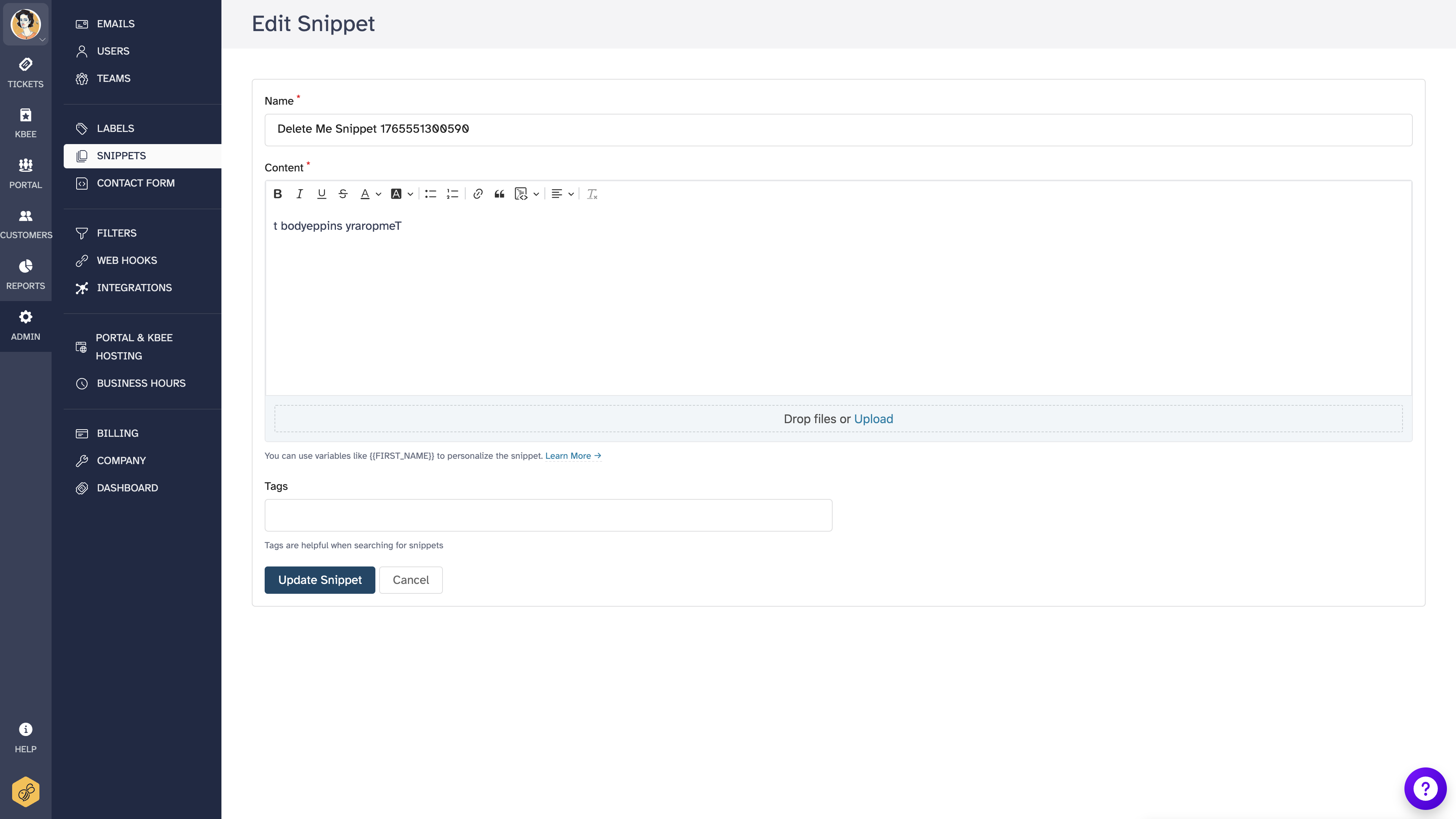
- Click 'Update Snippet' to save
How do I delete a snippet?
To delete a snippet you no longer need:
- Click on the 'Admin' link in the top left corner
- Select 'Snippets' from the left side menu
- Find the snippet you want to delete in the list
- Click 'Delete' next to the snippet
- Confirm the deletion when prompted
Note: Deleting a snippet is permanent and cannot be undone. Make sure you no longer need the snippet before deleting it.
HTML rendering in snippets
Snippets support rich text formatting including bold, italic, lists, links, and images. When you create or edit a snippet, the editor works the same way as the reply editor - what you see is what your customer will receive.
A few things to keep in mind:
- Formatting is preserved - Bold, italic, bullet lists, numbered lists, and links all render correctly when the snippet is inserted into a reply
- Images work - Drag and drop images into the snippet editor. They will display inline when the snippet is used in a reply
- Raw HTML is not supported - You cannot paste raw HTML code and have it render. Use the editor's formatting tools instead
- Email client variations - Complex layouts (tables, multi-column designs) may render differently across email clients. Keep snippet formatting simple for the most consistent results across Gmail, Outlook, Apple Mail, and other clients
Need inspiration for your snippets?
Check out our canned response templates for customer service for ready-to-use examples you can adapt for your team. For best practices on tone, structure, and personalization, see our guide on how to write the best email for customer support.