Power Automate Workflows for Customer Support Emails
Use Power Automate workflows for customer support emails to automate email triage, send follow-up emails, and route messages to the right team.
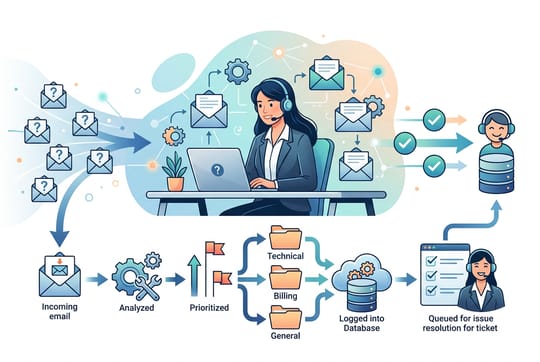
Your inbox fills faster than your team can reply. Urgent requests hide under routine questions. Customers wait and get frustrated.
Manual email sorting cannot keep up. Power Automate workflows for customer support emails solve this. You connect your email platform to smart automation. Messages route right away. Key data gets pulled out. Nothing slips through.
Support teams that use automation are 14.5% more productive than those doing everything by hand. That gap grows as ticket volume climbs.
For shared inbox benefits, the benefit is clear. Less time on repetitive work. More time helping customers. Power Automate connects with the Microsoft tools most businesses already use. You do not need a dedicated IT team or months of setup. You can build workflows that handle:
- Email triage and routing
- Automated follow-up emails
- Instant notifications
- File management
- AI-assisted responses
The result: a support operation that scales without adding staff or burning out your team.
Why Automate Support Emails with Power Automate?
shared inbox software creates bottlenecks. Agents and customers both feel the pain. Every minute spent sorting or copying data between systems is a minute lost solving problems. Automation removes that friction.
Automated email workflows save about 12 hours per week on repetitive tasks. That equals an extra part-time hire at no cost. Automation also makes your process consistent. Every email follows the same rules. Fewer mistakes slip through.
For help desks, email collaboration mean faster first responses and better routing accuracy. A customer emails about a billing issue. Automation spots the topic, tags it, and sends it to your billing specialist. Nobody needs to read and forward it by hand.
Key Connectors: Outlook, Gmail, and Microsoft Teams
Power Automate shines through its connector library. It links with Outlook and Microsoft 365 out of the box. Gmail connectors extend this to Google Workspace users. You are not locked into one email hosting provider.
Microsoft Teams adds another layer. When urgent emails arrive, workflows post alerts to team channels. The right people see critical requests right away. No one watches multiple apps.
You build on maintained connectors. No custom code needed. Power Automate works best in Microsoft environments, but hundreds of third-party connectors extend its reach.
Automated Email Triage and Categorization
Raw inbox volume is rarely the real problem. The challenge is knowing which messages need action now and which can wait. Email triage is the process of sorting incoming messages by urgency and topic so every request reaches the right person fast. Automated email triage turns your inbox from a time-ordered list into a priority queue.
Using AI Builder for Sentiment Analysis
AI Builder adds machine learning to Power Automate. You do not need data science skills. Sentiment analysis scans incoming emails and labels them positive, negative, or neutral.
This powers smarter routing. A frustrated customer gets flagged for fast action. A routine question follows normal processing. You can set up workflows to:
- Send negative-sentiment emails to senior agents
- Alert managers about high-risk messages
- Fast-track angry customers before they escalate
An angry customer who waits gets angrier. Sentiment analysis helps you catch these moments early.
Keyword-Based Routing to Specialized Teams
Keyword detection offers simpler routing. You pick trigger words for specific topics. Power Automate sends matching emails to the right team.
In practice:
- Emails with "refund" or "cancellation" go to billing
- Messages naming a product go to that product's specialist
- Technical terms route to your engineering support queue
This works well when routing patterns are clear. Each triage ticket lands in the right queue from the start. Once emails are sorted, a collaborative help desk makes sure someone takes ownership.
Example Workflow: Triage and Route a Support Email
Here is a step-by-step workflow you can build in about 30 minutes.
Goal: When an email arrives in your support mailbox, classify it by topic and route it to the right team channel in Microsoft Teams.
- Trigger: "When a new email arrives" in your shared support mailbox
- Condition: Check the subject line and body for keywords
- Contains "refund", "cancel", or "charge" -> tag as Billing
- Contains "bug", "error", or "crash" -> tag as Technical
- Contains "account", "login", or "password" -> tag as Account
- Everything else -> tag as General
- Action: Post a message to the matching Teams channel
- Include the sender name, subject line, and a snippet of the body
- Add a link to the email so agents can reply directly
- Action: Send an auto-reply to the customer
- Confirm you received their message
- Give an expected response time based on the category
- Action: Create a row in a SharePoint list to track the ticket
- Log the sender, subject, category, and timestamp
This single workflow cuts manual email triage time to zero. Every triage ticket gets classified and routed in seconds.
Tip: Start with 3-4 keyword categories. Add more as you learn which topics come up most often. Review your routing rules each month. Customer language changes over time.
Example Workflow: Escalate Overdue Emails
This workflow catches emails that sit too long without a reply.
- Trigger: Scheduled - runs every 30 minutes
- Action: Check your shared mailbox for unread emails older than 2 hours
- Condition: If any exist, check whether the email was already escalated (look for a flag or category)
- Action: For new overdue emails:
- Flag the email as "Escalated"
- Post an alert to a #urgent channel in Teams
- Send a push notification to the on-call supervisor
- Action: If the email is still unread after 4 hours, send an email to the team lead
This catches the emails that slip through the cracks. No customer waits all day for a reply because someone forgot to check the inbox.
Automating Follow-Up Emails
Closing a ticket is not the end of the conversation. Follow-ups confirm the fix worked and catch issues that come back. Most teams skip follow-ups when they are busy. Email follow-up automation removes that gap.
Power Automate can send auto follow-up emails on a schedule you control. Here is a practical workflow:
- Trigger: When an email in your support mailbox is moved to "Resolved" or marked as read after a reply
- Action: Wait 48 hours using a delay action
- Condition: Check if the customer replied during the wait period
- If yes, stop the flow - the conversation is still active
- If no, continue to follow-up
- Action: Send a follow-up email to the customer
- Ask if their issue is resolved
- Include a link to reopen the conversation or contact support
- Action: Log the follow-up in your SharePoint tracking list
This auto follow-up email workflow runs in the background. Agents never need to remember who needs a check-in. The system handles it.
You can add a second follow-up at the 7-day mark for customers who still have not replied. After that, close the ticket for good. This two-step approach catches lingering issues without annoying customers who are already satisfied.
Tip: Keep follow-up messages short. One question works better than a survey. "Is your issue resolved?" gets more replies than a 5-question form.
Optimizing Response Times with Instant Notifications
Speed matters in support. Customers expect fast answers, and delays hurt your reputation. Automated alerts bring urgent requests to your team even when no one watches the inbox.
Push Notifications for High-Priority Inquiries
Mobile push alerts bring critical emails to you anywhere. Power Automate sends them through its mobile app, Microsoft Teams, or SMS for urgent cases.
Define what counts as high priority:
- Emails from VIP customers
- Messages with urgent keywords like "down" or "outage"
- Any email past your SLA threshold
Do not notify about everything. That creates alert fatigue. Surface only the messages that need fast action.
Build escalation paths into your workflows. If a high-priority email goes unanswered for 15 minutes, it escalates to a supervisor. This ensures coverage when primary agents are busy.
Syncing Email Requests with CRM Systems
Customer context makes support better. When an agent opens an email, they should see the customer's history, recent purchases, and open issues. Power Automate syncs incoming emails with CRM platforms like Dynamics 365 or Salesforce. It creates or updates contact records on its own.
Companies that use CRM tools well see up to 30% better conversion rates. Similar gains apply to support. Full context means faster fixes and better experiences.
This sync works both ways:
- Inbound: Emails update CRM records
- Outbound: CRM events trigger messages to customers
- Renewal reminders go out before subscriptions expire
- Satisfaction surveys send after ticket resolution
Managing Attachments and Data Extraction
Customers often send attachments: error screenshots, invoices, contracts, or product photos. Sorting files by hand wastes time. Automation handles it the same way every time.
Automating File Uploads to SharePoint or OneDrive
When emails arrive with attachments, Power Automate pulls the files out. It uploads them to your chosen SharePoint library or OneDrive folder. You pick the structure: by customer, date, ticket number, or whatever fits.
You can also trigger extra workflows by file type:
- PDF invoices route to your accounting system
- Image files queue for visual review
- Documents with certain keywords get flagged for compliance
This builds a searchable archive. When someone needs a file from three months ago, they find it in a structured folder. Not buried in email.
Scaling Support with Self-Service and Auto-Replies
Not every email needs a human reply. Many questions have simple answers that automation can give right away.
Drafting AI-Generated Responses via Azure OpenAI
Azure OpenAI brings generative AI into your support workflows. When an email arrives, AI drafts a response based on the question and your past answers. Agents review the draft and send it. They do not write from scratch.
This keeps a human in the loop while cutting response time. In 2024, 85% of business leaders said AI automation drives productivity. AI-assisted drafting is one of the most practical uses.
To get good results:
- Start with common question types where you have proven answers
- Watch AI suggestions closely during the first few weeks
- Adjust your prompts based on what works and what misses
A simple, email-like help desk interface makes reviewing AI drafts feel natural. Pair this with canned responses for common questions.
Best Practices for Workflow Reliability
Building workflows is half the job. Keeping them running takes ongoing care.
Handling Errors and Failed Triggers
Every workflow hits errors eventually. Email servers go down. APIs time out. Strange data breaks parsing. Good workflows plan for failure.
Key steps:
- Set up alerts for workflow failures
- Add retry logic for short-lived issues like network timeouts
- Build fallback paths so critical emails still get processed
Test with edge cases. Try emails with odd characters, very long bodies, and corrupt files. Find failure points before your customers do.
Monitoring Performance and Analytics
Power Automate tracks run history and performance data. Watch these metrics:
- Average processing time per workflow
- Failure rates and error patterns
- Volume trends by day and hour
Slow workflows need bottleneck checks. Failure spikes point to data patterns. Regular reviews catch problems early.
The workflow automation market will reach $26.01 billion in 2026. Teams that invest now get ahead of competitors still sorting emails by hand.
Getting Started: Prerequisites and Licensing
Before you build workflows, check these requirements.
License tiers: Power Automate comes in several plans. The free plan lets you build basic cloud flows. The Premium plan ($15/user/month) adds premium connectors like Salesforce and AI Builder. The Process plan covers unattended automation.
What you need to start:
- A Microsoft 365 account (Business Basic or higher)
- Access to the shared mailbox you want to automate
- Admin rights to create connections in Power Automate
- A Teams workspace for notification channels (optional but recommended)
Free templates: Power Automate includes hundreds of pre-built templates. Search "email" or "support" in the template gallery. These give you a working starting point that you can customize.
Start with one simple workflow. Pick your highest-volume, most repetitive task. Build a flow for it. Test it for a week. Then expand.
Building Your Automation Foundation
Power Automate workflows for customer support emails change how small teams handle growing volumes. Email triage automation, auto follow-up emails, instant notifications, file management, and AI responses create a system that scales well.
For teams already using a collaborative help desk, Power Automate adds a strong automation layer on top. Automated email triage paired with a outlook ticketing system means less time on process and more time on people.
Automation does not replace human judgment. It frees your team to apply that judgment where it counts most: on hard problems that need a real person.
Frequently Asked Questions
What is Power Automate and how does it help with customer support?
Power Automate is Microsoft's workflow automation platform. It connects apps and services to handle repetitive tasks. For support teams, it routes emails, sends alerts, files attachments, and drafts AI-assisted responses. All without manual work.
Can Power Automate reply to emails?
Yes. Power Automate can send replies using the "Reply to email" or "Send an email" actions in Outlook and Gmail connectors. You can build flows that send auto-replies when certain conditions are met. For example, send a confirmation email when a support request arrives. You can also draft replies with AI and have agents review them before sending. The key is keeping a human in the loop for anything beyond simple acknowledgments.
How do I get emails from Power Automate?
Use the "When a new email arrives" trigger in the Outlook or Gmail connector. This fires your workflow each time an email hits a specific mailbox or folder. You can filter by sender, subject keywords, or whether the email has attachments. For shared mailboxes, use the "When a new email arrives in a shared mailbox" trigger. This gives your workflow access to every incoming message without needing individual account access.
Can Power Automate work with Gmail or just Outlook?
Power Automate works with both. It connects with Outlook and Microsoft 365 out of the box. Gmail connectors let you build workflows for Google Workspace too. Teams using either platform, or a mix, can automate their email workflows.
Do I need coding skills to set up Power Automate workflows?
No. Power Automate uses a visual drag-and-drop builder. Pre-built templates for email routing and alerts make it easy to start. Advanced features like AI Builder may need some technical knowledge.
Can Power Automate send follow-up emails automatically?
Yes. You can build a flow that tracks resolved tickets and sends a follow-up email after a set delay - typically 48 hours. The flow checks whether the customer replied during the wait. If not, it sends a short message asking if the issue is resolved. This auto follow-up email approach keeps customers in the loop without agents tracking each conversation manually.
How does Power Automate compare to a dedicated help desk tool?
Power Automate adds automation to your existing email setup. But it does not replace help desk features like ticket assignment, collision detection, internal comments, or reporting. Many teams use Power Automate alongside a help desk tool to get the best of both. For developers who prefer writing custom scripts over visual builders, SupportBee's Agent Skills give AI coding agents like Claude Code and Cursor the knowledge to build automation directly against the SupportBee API.