Help Desk Migration: A Step-by-Step Guide for Support Teams
Plan and execute your help desk migration without losing data or disrupting support. A complete checklist covering every step from audit to go-live.
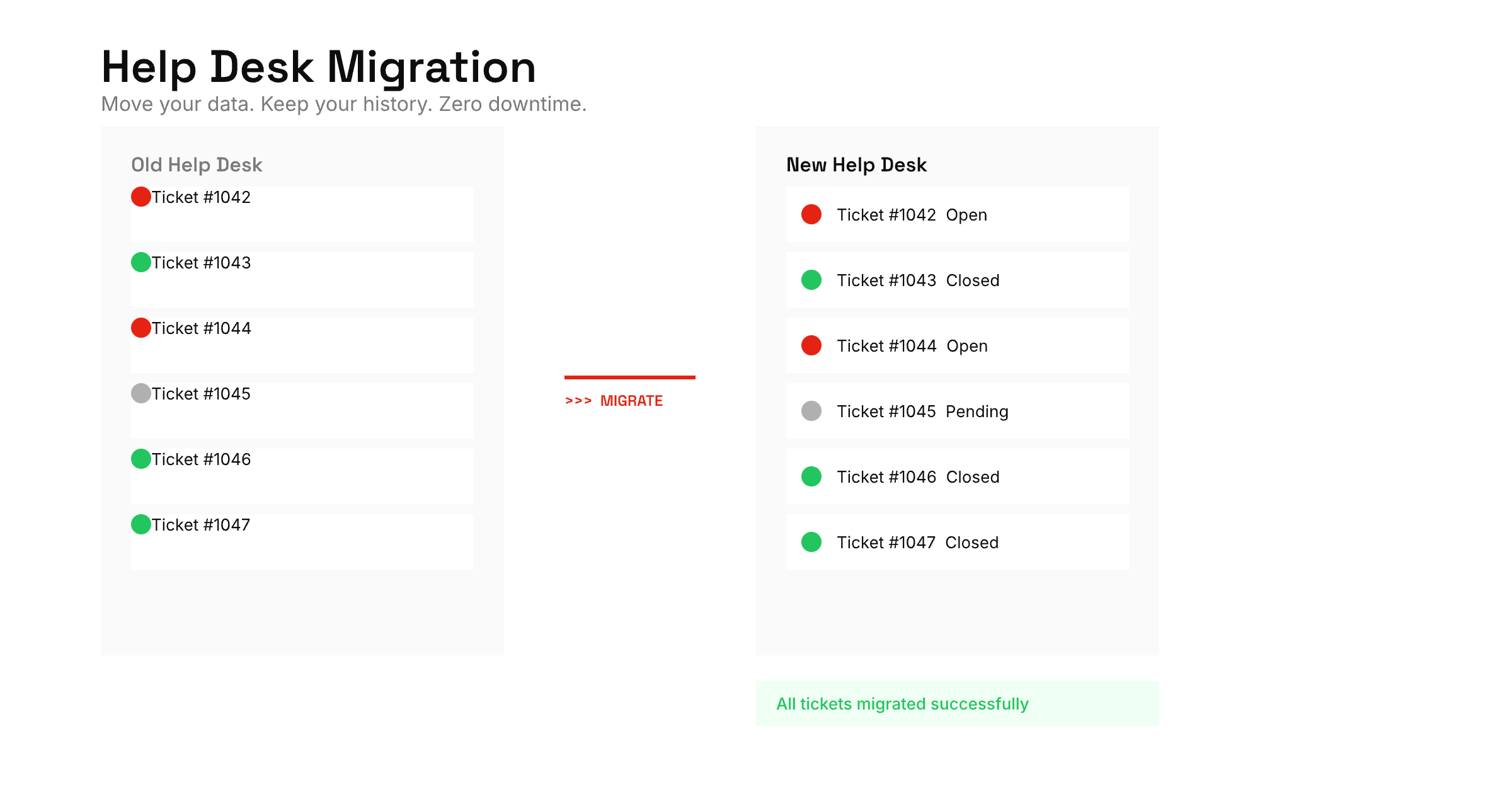
Help desk migration is the process of moving your customer support data, workflows, and configurations from one platform to another. Done right, your team switches tools with zero downtime and no lost tickets. Done wrong, you lose conversation history, break automations, and frustrate both agents and customers.
Over 80% of data migration projects fail to meet their goals or exceed budgets, according to Gartner research cited by multiple sources. Help desk migrations carry the same risks — but with the right plan, you can avoid them entirely.
This guide walks you through every step of a help desk migration, from deciding it is time to switch to monitoring performance 30 days after go-live.
When to Start Planning a Help Desk Migration
Not every frustration justifies migrating. Switching platforms costs time, money, and team energy. But some problems only get worse if you stay.
Rising costs without rising value. Your per-agent costs keep climbing, but the features you use have not improved. Many vendors raise prices annually while gating useful features behind higher tiers. If you are paying enterprise prices for a tool your small team uses at 30% capacity, migration starts to make financial sense.
Feature gaps blocking your support team. Your team builds workarounds for things the platform should handle natively. Manual ticket tagging because the automation builder is too rigid. Copy-pasting responses because the canned response system lacks variables. No unified inbox for managing email and chat together. Every workaround compounds — and migrating to a better-fit platform eliminates them.
Poor integration with your stack. Your help desk does not connect to the CRM, project management tool, or communication platform your team relies on. Data silos and duplicate entry slow down resolution times. Strong integrations are a top reason teams decide to migrate.
Scaling pain. What worked for five agents breaks at twenty. Ticket routing gets chaotic, reporting lacks granularity, and permissions are all-or-nothing. If your current platform cannot grow with your team, migrating to a scalable help desk prevents repeated ceilings.
How to Plan Your Help Desk Migration
Planning accounts for 70% of a successful migration. Rushing this stage leads to data loss, missed workflows, and costly rework during execution.
Define Migration Goals and Success Metrics
Start with why you are migrating. Write down the specific problems you are solving and the outcomes you expect.
Strong help desk migration goals look like this:
- Reduce average first response time from 4 hours to under 1 hour
- Consolidate three support channels into a single ticketing system
- Cut per-agent software costs by 30% by switching to a simpler platform
- Enable self-service support through a knowledge base
Define how you will measure migration success before you start. Not after.
Audit Your Current Help Desk Data
Before migrating anything, inventory what your current platform contains. This audit prevents the most common migration mistake — discovering missing data after you have already switched.
Data inventory checklist:
- Tickets: Open, pending, and closed tickets. Note the total count and date range you plan to migrate.
- Contacts: Customer profiles, organizations, and custom fields.
- Knowledge base articles: Published and draft articles, categories, and media files.
- Automations: Ticket routing rules, auto-responses, SLA policies, and escalation workflows.
- Canned responses: Saved reply templates and their folder structure.
- Agent data: User accounts, roles, permissions, and team assignments to recreate in the new platform.
- Tags and labels: Every tag, label, or custom field your team uses for ticket categorization.
- Integrations: Connected third-party apps and what data flows through them — these need reconfiguration after migration.
Export a sample of each data type and verify it is complete. Spot-check 20 to 30 tickets across different date ranges. Look for missing attachments, broken formatting in HTML content, and truncated conversation threads. Issues found now are far easier to fix before the migration than after.
Choose the Right Platform to Migrate To
Evaluate candidates against your migration goals, not a generic feature list. If your goal is faster response times, test each platform's ticket assignment and collision detection. If your goal is lower cost, compare total cost of ownership, not just the sticker price.
Key evaluation criteria for your help desk migration:
| Factor | What to Check |
|---|---|
| Data import | Does the vendor support importing from your current platform? |
| Workflow parity | Can you recreate your essential automations? |
| Team fit | How steep is the learning curve for your agents? |
| Integration support | Does it connect to your CRM, Slack, and project tools? |
| Pricing trajectory | What happens to costs as you add agents and features? |
| Export capability | Can you get your data out later if needed? |
Request a trial migration or sandbox environment. Never commit to a platform without testing the import process with real data. Our guide to the best help desk software for small businesses covers seven platforms worth evaluating before you migrate.
Assemble Your Migration Team
Assign clear ownership for every phase. Help desk migrations stall when nobody owns the timeline.
- Project lead: Owns the migration plan, timeline, and stakeholder communication.
- Technical lead: Handles data export, field mapping, import, and integration setup.
- Support team lead: Validates that workflows, macros, and canned responses work correctly after the switch.
- QA tester: Runs test migrations and verifies data integrity before go-live.
For teams under ten agents, one or two people can cover these roles. The point is not headcount — it is making sure every migration responsibility has a name next to it.
Set a Realistic Migration Timeline
Most help desk migrations take two to six weeks depending on data volume and complexity. Here is a baseline:
| Phase | Duration | Key Activities |
|---|---|---|
| Planning and audit | Week 1 | Data inventory, goal setting, platform selection |
| Data preparation | Week 2 | Cleanup, field mapping, test exports |
| Test migration | Week 3 | Sample import, validation, workflow testing |
| Team training | Week 3–4 | Agent onboarding, documentation, practice tickets |
| Go-live | Week 4–5 | Full data migration, monitoring, old system read-only |
| Stabilization | Week 5–6 | Bug fixes, metric tracking, feedback collection |
Build buffer time into every phase. Data cleanup always takes longer than expected.
Executing Your Help Desk Migration Step by Step
With your plan in place, execution follows a predictable sequence. Do not skip steps — each one catches migration problems that compound downstream.
Back Up Your Current Help Desk
Export a complete backup before making any changes. Store it somewhere outside both platforms — a cloud storage bucket or local drive.
This backup is your safety net. If the migration fails or data corrupts during transfer, you can restore from this copy. Keep it for at least 90 days after go-live.
Clean and Standardize Data Before Migration
Migrating dirty data into a clean system defeats the purpose of switching. Pre-migration cleanup is your chance to fix problems you have been ignoring.
Cleanup tasks:
- Merge duplicate contacts. Most help desks accumulate duplicate customer profiles over time. Clean these before migration so you start fresh.
- Archive stale tickets. Tickets closed more than two years ago rarely need to migrate. Export them to an archive for compliance, but keep them out of the migration.
- Standardize tags and labels. Consolidate overlapping tags. "billing_issue," "billing-problem," and "billing" should become one tag in your new platform.
- Remove orphaned data. Canned responses nobody uses. Custom fields with zero entries. Automations that were disabled months ago. Less data to migrate means a faster, cleaner migration.
- Fix encoding issues. Check for broken characters in ticket bodies, especially if your data includes multiple languages.
Teams that skip data cleanup before migration typically spend twice as long troubleshooting issues after go-live.
Map Data Fields Between Help Desk Platforms
Every help desk structures data differently. A "priority" field in one platform might map to "urgency" in another. A "group" might become a "team." Creating a field mapping document is essential for an accurate migration.
| Source Field | Source Values | Target Field | Target Values | Notes |
|---|---|---|---|---|
| Priority | Low, Normal, High, Urgent | Priority | Low, Medium, High, Critical | Map "Normal" to "Medium" |
| Status | New, Open, Pending, Solved | Status | Open, In Progress, Waiting, Closed | Map "Solved" to "Closed" |
| Group | Billing, Technical, Sales | Team | Billing, Technical, Sales | Direct match |
| Custom: Account Type | Free, Pro, Enterprise | Custom: Plan | Free, Pro, Enterprise | Rename field |
Pay special attention to these migration risks:
- Custom fields — most likely to break or lose data during migration.
- Multi-select fields — platforms handle these differently.
- Date formats — timezone handling varies between help desks.
- HTML content — ticket bodies and knowledge base articles may need formatting adjustments after migration.
Run a Test Migration
Never go straight to a full migration. Run a test with a subset of your data first.
Test migration checklist:
- Import 50 to 100 tickets spanning different date ranges, statuses, and agents.
- Import associated contacts, attachments, and conversation threads.
- Verify ticket content renders correctly, including HTML formatting and inline images.
- Check that conversation order is preserved — replies should appear in chronological sequence.
- Confirm custom field values mapped correctly.
- Test that internal notes remain internal (not visible to customers).
- Validate that attachments download and open properly.
If the test migration reveals problems, fix the mapping and run it again. It is far cheaper to iterate on 100 tickets than to fix issues across 100,000.
Train Your Team Before the Help Desk Migration Go-Live
Do not wait until migration day to train your agents on the new help desk. Start training during the test migration phase so your team has time to practice before the full switch.
Migration training priorities:
- Daily help desk workflows: Assigning tickets, adding internal notes, using canned responses, and updating ticket status in the new platform.
- Key differences between platforms: What works differently in the new help desk versus the old one. Highlight changes that affect muscle memory — keyboard shortcuts, navigation, search syntax.
- New capabilities gained from migration: Features you are adding with the switch. Show agents how these solve the pain points that motivated the help desk migration.
Create a quick-reference cheat sheet comparing old and new help desk workflows side by side. Agents who can self-serve answers during the first week after migration will adapt faster.
Go Live With Your Help Desk Migration
Pick a low-volume period for go-live. Mid-week, mid-morning tends to work best for support teams.
Go-live sequence:
- Run the full data migration.
- Verify completion — check ticket counts, contact counts, and article counts against your source data.
- Switch incoming email routing to the new platform.
- Update any API integrations, webhooks, and connected apps.
- Set the old help desk to read-only mode. Do not delete it yet.
- Have your team start working in the new system with live tickets.
- Monitor the support queue closely for the first 24 to 48 hours.
Assign a dedicated point person for migration issues during the first week. Agents need a fast path to report problems without disrupting customer-facing work.
Post-Migration Checklist
The migration is not done at go-live. The 30 days after launch determine whether the switch succeeds long-term.
Verify Data Integrity After Migration
Run a systematic check within the first 48 hours:
- Ticket count reconciliation. Compare the number of migrated tickets against your source count. A discrepancy above 1% warrants investigation.
- Random sampling. Pull 30 to 50 tickets at random and compare them against the old system. Check for missing replies, lost attachments, and incorrect field values.
- Automation validation. Send test tickets through every routing rule and automation. Verify they trigger correctly in the new platform.
- Knowledge base review. Spot-check articles for broken images, formatting issues, and missing categories.
Keep the Old Help Desk in Read-Only Mode
Maintain access to your old platform for at least 30 days after migration, ideally 90. Agents will need to reference old tickets that did not migrate (if you filtered by date range), and customers may reply to old email threads that route to the previous system.
Most vendors let you downgrade to a free or minimal plan during this overlap period. Ask before you cancel.
Track Key Metrics After Migration
Compare your post-migration performance against your pre-migration baseline:
- First response time — should improve or hold steady, not regress.
- Resolution time — may increase temporarily as agents learn the new tool, then should improve.
- Customer satisfaction (CSAT) — watch for dips in the first two weeks. Small dips are normal. Sustained drops signal a migration problem.
- Ticket volume — a spike after migration often indicates customer confusion (especially if you changed your support email or portal URL).
- Agent throughput — tickets handled per agent per day. Expect a temporary drop during the learning curve.
Gather Feedback on the Migration
Ask your agents three questions at the end of week one and again at week four:
- What is easier in the new system?
- What workflows are harder or broken after the switch?
- What do you miss from the old platform?
The gap between week-one and week-four answers tells you what is a real migration problem versus adjustment friction. Focus on fixing the issues that persist.
Common Help Desk Migration Pitfalls
Underestimating Data Cleanup Time
Teams routinely budget one to two days for data cleanup and need one to two weeks. Start cleanup before you finalize your migration date, not after. Dirty data is the single most common cause of migration delays.
Skipping the Test Migration
A test migration with 50 to 100 tickets takes a few hours. Fixing a botched full migration takes days. Always run a test first — no exceptions.
Neglecting Team Preparation
The technical side of migration gets all the planning. Team preparation gets a one-hour training session the day before go-live. That imbalance causes more post-migration problems than data issues do.
Involve your support team early. Let them test the new platform during evaluation. Ask for their input on workflow design. People who feel ownership over the new system adopt it faster than people who have it imposed on them.
Losing Automations During Migration
Automations rarely transfer 1:1 between help desk platforms. Export your current rules as documentation (screenshots and written descriptions), then rebuild them manually in the new system. Test each one individually before go-live.
The same applies to ticket management best practices, escalation rules, and auto-responses. Anything that runs without human input needs explicit verification after migration.
How SupportBee Makes Help Desk Migration Easy
SupportBee is a support ticketing system built for teams migrating from complex platforms to something simpler and faster.
Minimal training needed. SupportBee's interface looks and feels like email. Agents start handling tickets within minutes, not days. That cuts the training portion of your migration from weeks to hours.
Shared inbox that works. Every support email lands in one shared inbox where your entire team can see ticket status, assignments, and conversation history. No more lost tickets or duplicate replies.
Knowledge base included. Migrate your existing articles into SupportBee's built-in knowledge base. Customers find answers without submitting tickets, reducing post-migration ticket volume from day one.
Customer portal. Give customers a dedicated portal to track their tickets and find help articles. Fewer "what is the status of my request?" follow-ups means more time for real problem-solving.
Predictable pricing. SupportBee starts at $20 per user per month with no hidden tiers or feature gates. No surprise cost increases that force another migration later. Check the pricing page for details.
If you are evaluating platforms for your migration, the alternatives guides for Zendesk and Help Scout cover how SupportBee compares.
If you are also migrating your email platform alongside your help desk, see our guides on migrating from Google Workspace to Microsoft 365 and migrating from Microsoft 365 to Google Workspace.
Help Desk Migration FAQ
How long does a help desk migration take?
Most migrations take two to six weeks from planning to stabilization. The biggest variables are data volume (number of tickets and contacts) and complexity (custom fields, automations, integrations). A team migrating 10,000 tickets with simple workflows can finish in two weeks. A team migrating 500,000 tickets with dozens of automations should budget six weeks.
Will customers notice the help desk migration?
They should not, if you plan the cutover correctly. Keep your support email addresses the same. Redirect your old help center URL to the new one. Send a brief notification only if the customer portal URL changes. Most customers care about getting help, not which platform powers it.
What data should I migrate versus leave behind?
At minimum, migrate open and recently closed tickets (last 6 to 12 months), all customer contacts, knowledge base articles, and canned responses. Archive older closed tickets as an export file for compliance, but do not load them into the new system unless agents regularly reference them. Less data means a faster migration and a cleaner starting point.
Can I migrate automations and workflows automatically?
Rarely. Automation logic varies too much between help desk platforms for automated transfers. Document your current rules, then rebuild them in the new system. Use the migration as a chance to simplify — most teams find that 30 to 40% of their automations are outdated or redundant.
What if my current vendor makes data export difficult?
Some vendors restrict data export or charge for it. Before you sign with any help desk provider, confirm their data export policy in case you need to migrate later. If your current vendor limits exports, check whether third-party migration tools like Help Desk Migration by Relokia support your platform pair. As a last resort, use the vendor's API to extract data programmatically.