Extract Original Sender from Forwarded Emails
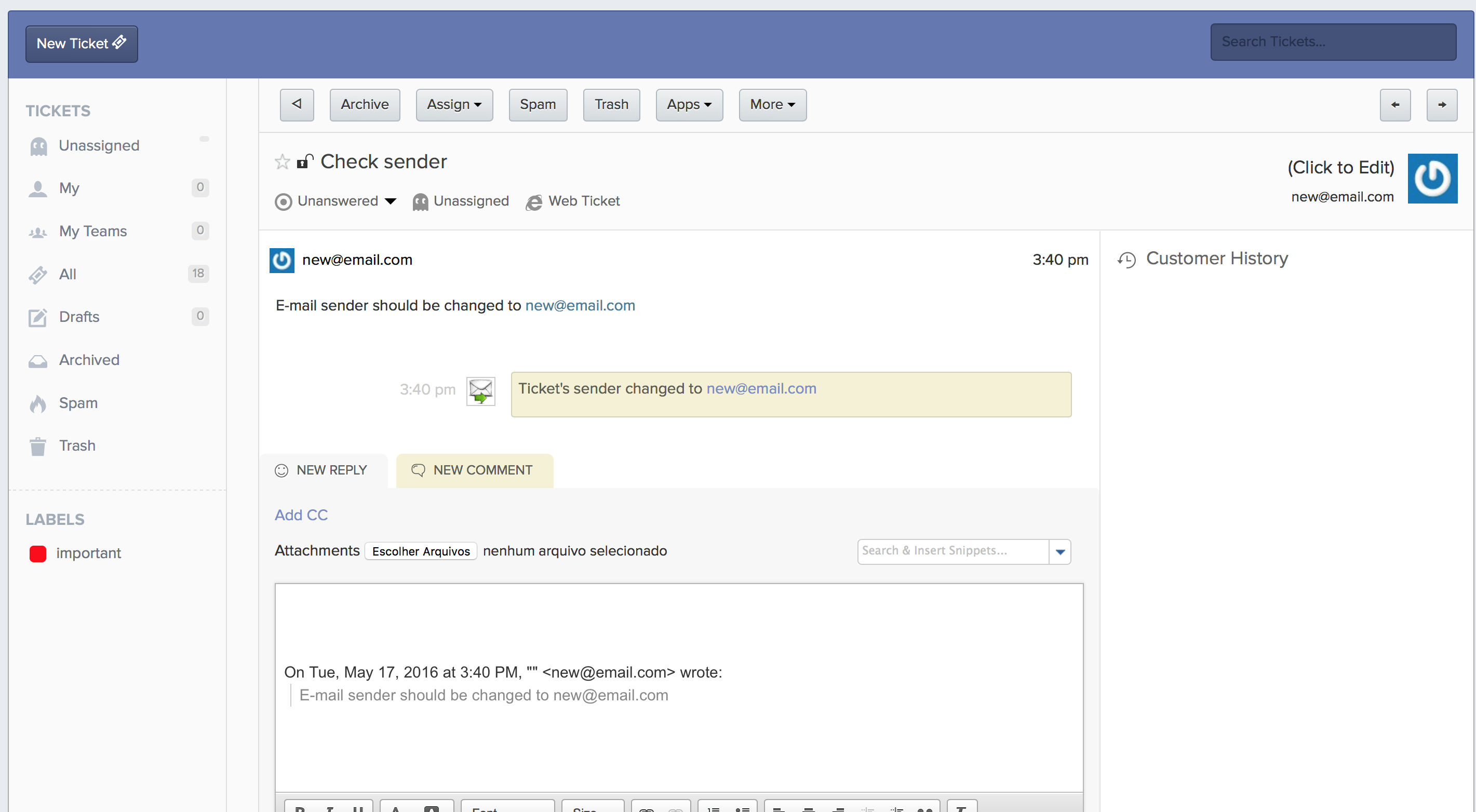
SupportBee's Extract Sender from Email integration solves a common help desk problem: tickets that arrive from system addresses instead of real customers. When a third-party tool, CRM, or internal system forwards customer emails using a noreply address, this integration finds the actual customer's email in the message body and reassigns the ticket to them.
Without this integration, these tickets show a generic sender like [email protected]. Your agents cannot reply to the customer directly, and the ticket is not linked to the right contact history. This integration fixes that automatically.
How It Works
When a ticket arrives from a known forwarding or noreply address, SupportBee scans the email body for a customer email address. If it finds one, it updates the ticket's sender to that address. The ticket then behaves like any normal customer email - replies go directly to the real person.
The process runs automatically on every incoming ticket:
- An external system forwards a customer email to your SupportBee address
- SupportBee creates a ticket with the forwarding system's email as the sender
- The integration scans the email body for a valid customer email address
- If found, SupportBee updates the ticket sender to the real customer
- Your agent replies normally, and the response goes to the actual customer
This happens in seconds. By the time your agent opens the ticket, it already shows the correct sender.
Why This Matters
Many businesses receive support requests through indirect channels. Contact forms, CRM systems, e-commerce platforms, and internal tools often forward customer messages using their own email address. Without sender extraction, your help desk fills up with tickets from addresses like [email protected] or [email protected].
Reply to the right person. The most basic problem: if the ticket shows a noreply address, your agent cannot respond. Sender extraction ensures replies reach the customer who actually needs help.
Build accurate customer history. When tickets are linked to the real customer email, SupportBee groups all their past tickets together. Your agent sees the full conversation history, not a disconnected thread from a system address.
Save time on every ticket. Without this integration, agents manually copy-paste the customer email from the message body, create a new ticket, or forward the reply. That manual work adds up fast across hundreds of forwarded tickets.
Support any forwarding source. Whether your tickets come from a WordPress contact form, a Shopify notification, a CRM like Pipedrive or Insightly, or an internal IT system, the extraction logic works the same way.
Common Use Cases
Contact Forms
Your website contact form sends submissions to your support email. The "from" address is the form system, not the customer. This integration extracts the customer's email from the form body so you can reply directly.
CRM and E-Commerce Notifications
Platforms like Shopify, WooCommerce, or CRM tools sometimes forward customer inquiries from their own addresses. The integration pulls the customer email out so the ticket routes correctly.
Internal Forwarding Systems
IT teams and operations groups often forward customer issues from internal systems. The integration ensures the ticket connects to the external customer, not the internal sender.
Multi-Tier Support
If another team forwards customer emails to your SupportBee inbox, the ticket arrives from the forwarding team member's address. Sender extraction identifies the original customer and links the ticket to them.
Setting Up Extract Sender from Email
- Open your SupportBee admin panel and go to Integrations
- Find Extract Sender from Email under the Workflow section
- Click Add to enable it
- The integration starts scanning all incoming tickets automatically
No additional configuration is needed. The integration uses pattern matching to find email addresses in the message body and updates the ticket sender when a match is found.
Works with Your Support Workflow
Pair sender extraction with other SupportBee features for a complete workflow:
- Assign After Reply - Once the real sender is identified, the replying agent gets automatic ownership
- Archive After Reply - Clean resolution for simple forwarded requests
- Show Ticket Number - Give the real customer a reference number for follow-up
- Slack - Get notified when forwarded tickets arrive
The integration works alongside SupportBee's shared inbox, knowledge base, and customer portal to ensure every customer interaction is tracked against the right person.
Start your free 14-day trial and start extracting real customer emails automatically - no credit card required.
More Workflow Integrations



From our blog
Guides and comparisons to help you choose the right support tools.



Try the Extract Sender from Email integration free
Set up SupportBee in under five minutes. No credit card required.
Start Free Trial