Turn Support Tickets into Trello Cards
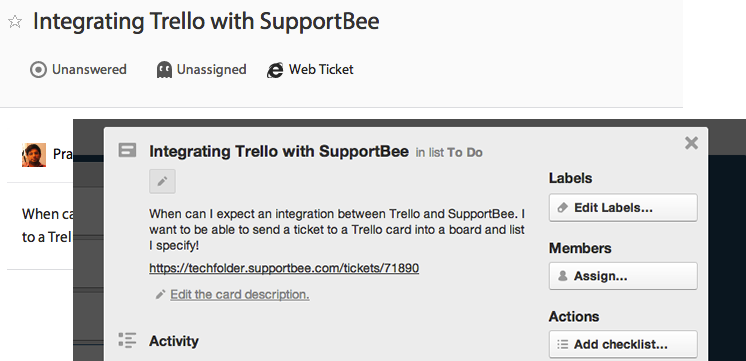
SupportBee's Trello integration connects your ticketing system with Trello boards. When a support ticket needs attention from your product, engineering, or operations team, send it to Trello as a card — directly from SupportBee's shared inbox. No copy-pasting, no context lost.
Why You Need a Ticketing System with Trello
Trello is a visual project management tool — not a help desk. It has no ticket assignment, no collision detection, no SLA tracking, and no way to handle customer emails through a shared inbox. Teams that try to use Trello as a ticketing system on its own end up building workarounds with labels, custom fields, and Power-Ups that break as volume grows.
A dedicated ticketing system like SupportBee handles the customer support workflow: converting emails into trackable tickets, assigning them to agents, preventing duplicate replies, and tracking resolution. The Trello integration bridges the gap — support stays in SupportBee, project work stays in Trello, and tickets flow between them automatically.
Here is when this matters most:
- A customer reports a bug that developers need to track on their Trello board
- A feature request comes in that the product team should add to their backlog
- A billing question needs input from a finance team that works in Trello
- A support agent needs to escalate an issue without switching tools or losing context
How the Trello Email Integration Works
The integration adds a "Send to Trello" action inside every support ticket in SupportBee. Click it, and the ticket content — subject, body, customer details, and attachments — becomes a Trello card on the board and list you choose.
Your support agents stay in the team inbox. Your project team stays in Trello. Each team works in their own tool, and the ticket context travels with the card.
This means you get a proper Trello ticketing system without the limitations of using Trello alone. SupportBee handles the customer-facing side — email threading, assignments, knowledge base deflection — while Trello handles the internal project tracking.
Setting Up the Trello Ticketing System Integration
Connecting SupportBee to Trello takes about two minutes:
- Go to Admin → Integrations in SupportBee
- Search for Trello and click Add to My SupportBee
- Authorize SupportBee to access your Trello account
- Select the Trello board where you want cards created
- Choose the default list for new cards (e.g., "Incoming" or "To Do")
No API keys to generate, no webhooks to configure. Once connected, every agent on your team can send tickets to Trello from the ticket view.
Sending Support Tickets to Trello
Once the integration is active, the workflow is straightforward:
- Open a ticket in SupportBee's team inbox
- Click Integrations → Send to Trello
- Edit the card title and description if needed
- Select the target board and list
- Send
The card appears on your Trello board immediately with full customer context. Your project team can add labels, set due dates, assign members, and move the card through their workflow — all without needing access to the help desk.
Who Uses SupportBee with Trello
This integration works well for teams where support agents and project managers need to stay aligned without sharing tools:
- Software teams that escalate bug reports from the help desk to developers tracking work on Trello boards
- Agencies that manage client support through a ticketing system while tracking deliverables in Trello
- Operations teams where customer feedback needs to flow into project planning and sprint boards
- Teams scaling support can reference support-to-project tool integration patterns and managing a busy support queue when building their stack
SupportBee starts at $17/user/month and includes the Trello integration on all plans. If your team already uses Trello for project management, adding SupportBee gives you a dedicated help desk that keeps your boards focused on project work — not cluttered with support requests.






From our blog
Guides and comparisons to help you choose the right support tools.


Try the Trello integration free
Set up SupportBee in under five minutes. No credit card required.
Start Free Trial